
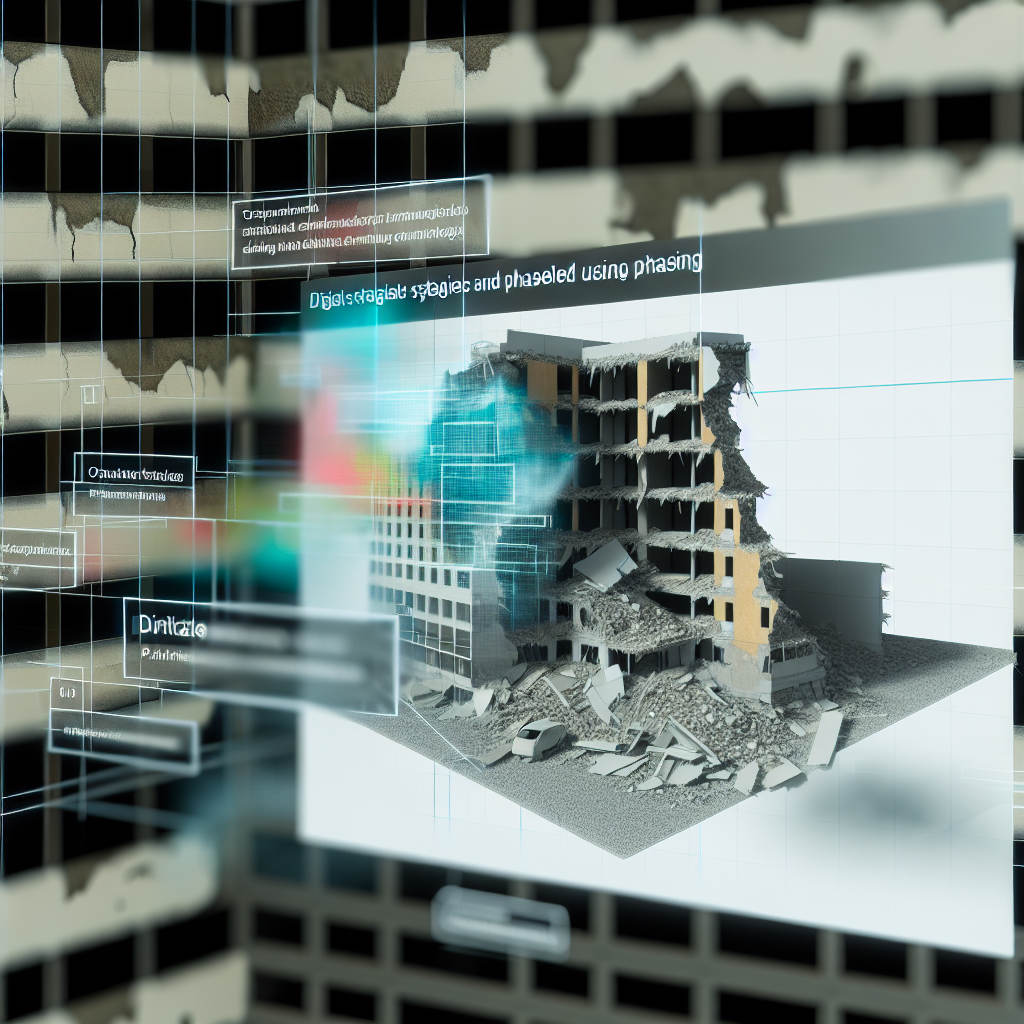
One common misconception among Revit users is that there is a dedicated “demolition phase” feature within the software. In reality, Revit doesn’t offer a specific demolition tool, but instead, it relies on strategic modeling and phase management to simulate demolition and construction workflows effectively. Understanding how to approach this within Revit can streamline your project processes.
Understanding Revit’s Phasing and Its Role in Demolition Simulation
Unlike traditional construction methods, Revit does not include an explicit “demolition” phase as a core feature. Instead, it offers a flexible phasing system that allows users to control the visibility and modification of elements across different stages of a project. Through phases, you can create a logical sequence where parts of a building are designated as “existing,” “to be demolished,” or “new construction.” This approach enables accurate visualizations and documentation without directly coding demolition as a separate process.
By assigning elements to specific phases, architects and builders can generate clear, chronological models that reflect real project timelines. For example, if a wall needs to be removed during renovation, it can be tagged as part of the “demolition” phase. When you set up views and sheets accordingly, only the relevant elements are visible for that stage, providing a dynamic and realistic project presentation. This method enhances communication with clients and contractors, illustrating proposed changes seamlessly.
Effective Strategies for Managing Demolition in Revit
Since Revit doesn’t have a built-in demolition tool, effective management hinges on strategic use of phases, filters, and element visibility settings:
- Define clear phases: Create specific phases such as “Existing,” “Demolition,” and “New Construction” to structure your model logically.
- Assign elements accurately: Tag existing, demolished, and new elements to their respective phases to maintain control over their visibility.
- Use filters and view templates: Customize views to focus solely on the demolition work or the upcoming construction, ensuring clarity in documentation.
- Leverage temporary graphics: Use overlay or temporary hide/show settings to simulate demolitions without permanently deleting elements, preserving your model’s integrity.
Implementing these strategies allows for a realistic and manageable workflow, where demolition activities are visually distinguished from ongoing or future work. This flexibility makes Revit a powerful tool for renovation projects, enabling detailed planning without a dedicated “demolition” command.
In conclusion, Revit does not have an explicit demolition phase; instead, it relies on an advanced phasing system to simulate the demolition process. By strategically assigning elements to phases and utilizing filters and graphics, users can effectively manage demolition workflows. This approach not only enhances visualization and documentation but also streamlines project communication, making Revit a versatile solution for complex construction and renovation projects.