
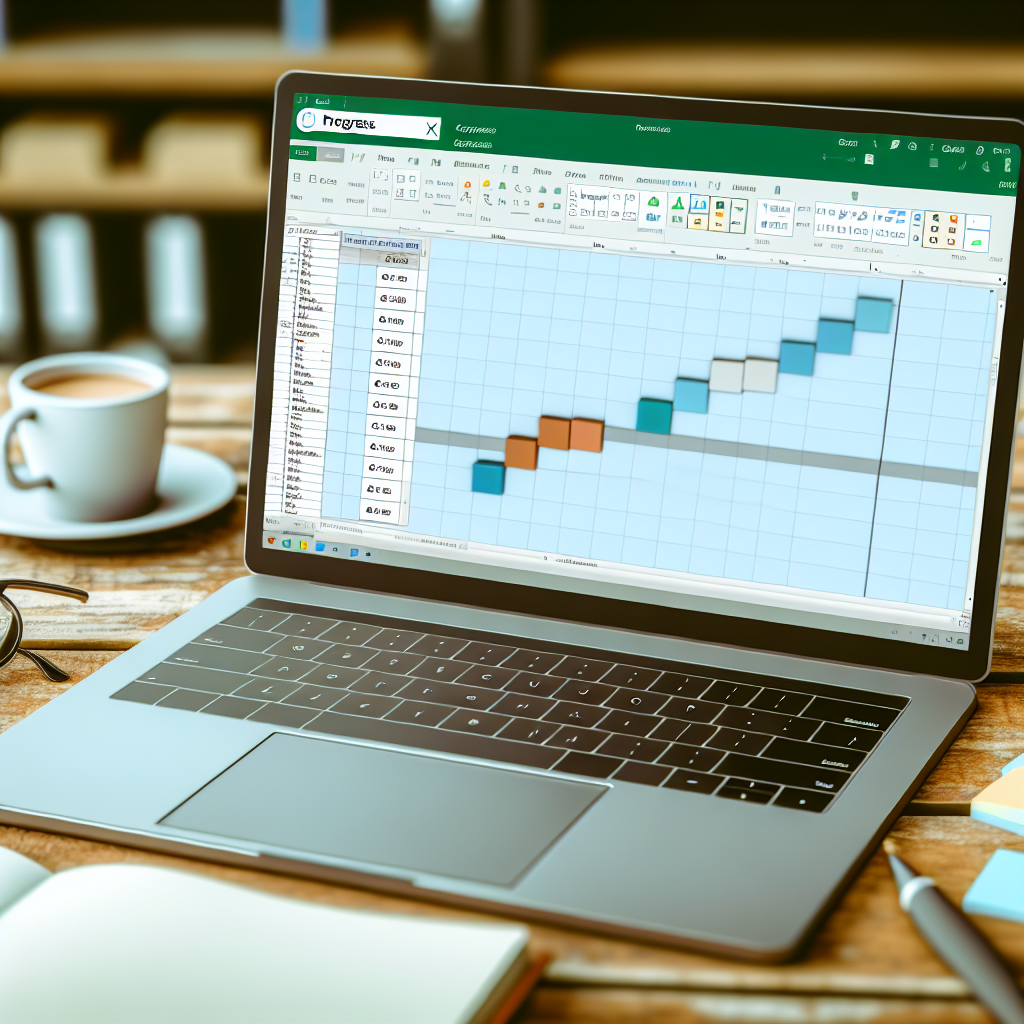
Creating a progress tracker in Excel is a powerful way to monitor your goals, projects, or daily tasks with precision and customization. By leveraging Excel’s features, you can develop dynamic visual dashboards that update automatically, providing real-time insights. In this article, we will explore how to build an effective progress tracker in Excel, enhancing your productivity and organization.
Designing a User-Friendly Progress Tracker in Excel
To create a functional progress tracker, start by defining clear goals or milestones. Use Excel’s grid layout to list tasks and their respective deadlines or target dates. Incorporate *progress indicators* such as *checkboxes*, *percentage completion*, or *color-coded cells* to visually represent the status of each task. Utilizing Excel’s built-in features like *Conditional Formatting* can dramatically improve visual clarity, allowing you to instantly identify pending, in-progress, or completed tasks.
Implementing formulas is crucial for automation. For example, using formulas like *IF*, *COUNTIF*, or *SUMIF*, you can automatically update the progress based on task completion. To make the tracker more interactive, consider adding *dropdown lists* via Data Validation, enabling easy status updates. As your project evolves, these dynamic elements will ensure your progress tracker remains accurate and easy to maintain.
Advanced Features for Enhanced Monitoring
For more sophisticated tracking, leverage Excel’s *charts* and *pivot tables* to visualize progress trends over time. Create *progress bars* using *conditional formatting* that fill proportionally to completion percentage, offering a quick visual summary. Additionally, integrating *automated alerts* through *macros* or *conditional formatting* can notify you of approaching deadlines or lagging tasks.
Another advanced tip involves linking your progress tracker to external data sources or other sheets within your workbook. This interconnectedness ensures that your data remains synchronized, providing a comprehensive overview. For long-term projects, set up *monthly* or *weekly dashboards* to review overall progress, spot bottlenecks, and adjust your plans accordingly.
Conclusion
Building a progress tracker in Excel combines thoughtful layout design with powerful automation features, enabling efficient project management. From simple task lists to advanced dashboards, Excel offers tools to visually and functionally track your progress effectively. By implementing these strategies, you’ll enhance your productivity and gain clearer insights into your goals, making success more attainable.