
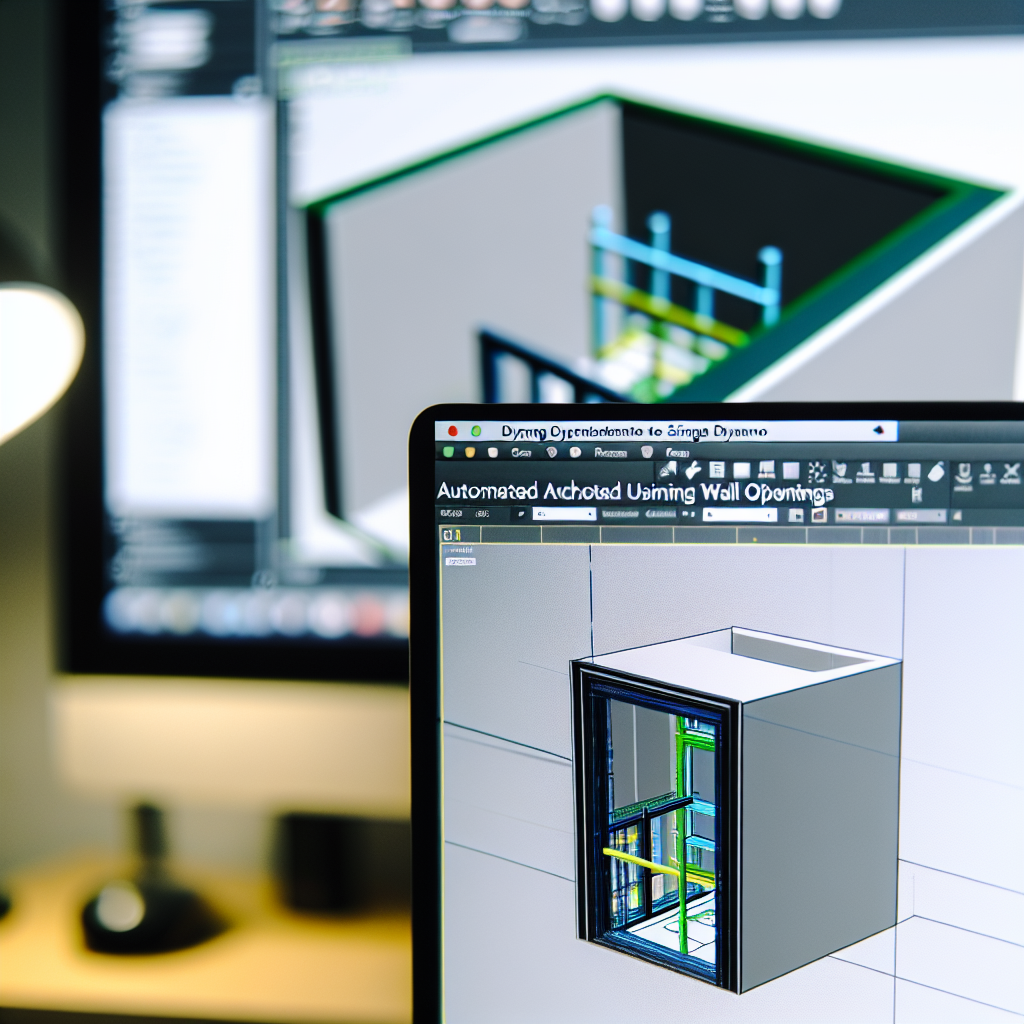
Creating precise wall openings in architectural models is crucial for efficient design and construction. Leveraging Revit with Dynamo allows for automation and accuracy when managing these openings, especially when they are linked to other models. In this article, we’ll explore how to use Dynamo to generate wall openings dynamically based on linked Revit models, streamlining your workflow and enhancing project coordination.
Automating Wall Openings through Linked Revit Models with Dynamo
When working with complex architectural projects, it’s common to have multiple linked models such as structural, MEP, and architectural components. Managing wall openings manually in each linked model can be time-consuming and prone to errors. By utilizing Dynamo, a visual programming tool integrated with Revit, users can automate this process effectively.
The key to this automation lies in establishing a **linked Revit model** as a reference point. Dynamo can then extract relevant geometry and data from the linked models, identify the locations and dimensions of openings (like doors, windows, or structural cutouts), and automatically generate corresponding openings in your host walls. This approach not only ensures consistency across models but also drastically reduces manual work and potential mistakes.
Implementing the Workflow: Step-by-Step
- Link the Models: Ensure both the main and linked models are correctly referenced within Revit. Verify that shared coordinates align to maintain spatial accuracy.
- Create a Dynamo Script: Use nodes to access linked document data. Extract geometry such as doors, windows, or specific wall penetrations that need openings.
- Identify and Filter Openings: Employ geometry filtering techniques to detect relevant features within the linked model. For instance, filter doors and windows that intersect walls needing openings.
- Generate Wall Openings: Use Dynamo to create openings in the host walls by cutting lines or extrusions based on the detected features’ dimensions and locations.
- Update and Synchronize: Run the script to update wall openings dynamically. If the linked model changes, rerun Dynamo to sync the openings accordingly, maintaining an up-to-date model.
This workflow capitalizes on Dynamo’s capabilities to read, interpret, and modify Revit models automatically. Proper scripting and careful filtering ensure that only the necessary openings are created, aligning all models perfectly.
Conclusion
Using Dynamo to create wall openings based on linked Revit models significantly enhances project efficiency and accuracy. This method automates tedious manual tasks, ensures synchronization across different models, and supports dynamic project updates. Implementing this workflow allows architects and engineers to focus more on design quality while reducing potential errors, making your Revit projects more streamlined and professional.